Getting Started
Your complete guide to using LeleBot Dashboard and Discord Bot
🚀 Quick Start
📑 Table of Contents
📖 Overview
The LeleBot ecosystem consists of two main components working together:
🤖 Discord Bot
- Manages your Discord community
- Links Discord users to Kick accounts
- Tracks watchtime and assigns roles
- Runs raffles, games, and rewards
- Interactive panels and commands
🎛️ Admin Dashboard
- Web interface for bot management
- Configure Kick integration
- Manage raffles and giveaways
- Create OBS overlays and widgets
- Track analytics and statistics
🤖 Discord Bot Setup
1Verify the Bot is in Your Server
The bot should already be invited to your Discord server. You can verify this by:
- Opening your Discord server
- Looking at the member list - you should see the bot with a "BOT" tag
- Right-clicking the bot → Check Profile to confirm it's online (green status)
2Verify Bot Permissions
The bot needs certain permissions to function correctly. Check that the bot has:
- Manage Roles - To assign watchtime roles automatically
- Send Messages - To post notifications and responses
- Embed Links - To create rich message embeds
- Read Message History - For command processing
- Add Reactions - For interactive features
3Create the Link Panel
This is the most important step! The Link Panel allows your community to connect their Kick accounts to Discord.
How to Create:
- Go to the Discord channel where you want the panel (e.g.,
#link-accounts) - Type the command:
!createlinkpanel - Press Enter - the bot will create an interactive panel with a button
How Users Link Their Accounts:
- User clicks the 🔗 Link Account button on the panel
- Bot sends them a private ephemeral message (only they can see it)
- User clicks "Authorize with Kick" button
- Redirected to Kick.com to authorize the connection
- After authorization, they're redirected back and linked automatically!
4Set Up Watchtime Roles (Optional)
Automatically reward viewers with roles based on how long they've watched your streams.
Via Discord Commands:
!roles add @Fan 60           # Give @Fan role after 60 hours

!roles add @Superfan 300     # Give @Superfan role after 300 hours

!roles add @Legend 1000      # Give @Legend role after 1000 hours
Via Dashboard:
- Navigate to: Dashboard → Profile Settings
- Scroll to "Watchtime Roles" section
- Click "Add Role"
- Select role and set hours required
- Click "Save"
Navigation: Server Settings → Roles → Drag bot's role above watchtime roles
5Create Game Panels (Optional)
Set up interactive game panels for your community:
Slot Request Panel:
Allows viewers to suggest slots for you to play:
!createslotpanel
Users can then type in Kick chat: !call Sugar Rush or !sr Gates of Olympus
Guess the Balance Panel:
Run a game where viewers guess your final balance:
!creategtbpanel
Panel buttons let you open/close sessions and enter the final balance to find winners.
🎯 Kick Integration Setup
1Access Profile Settings
- Log into the Admin Dashboard (this website)
- In the left sidebar, scroll down to "ADMIN CONTROLS" section
- Click "Profile Settings"
2Enter Your Kick Channel
- In Profile Settings, find the "Kick Channel" field
- Enter your Kick username (e.g., if your channel is kick.com/lele, enter
lele) - Click "Save Settings" at the bottom
3Link Your Kick Account (OAuth)
This step connects the dashboard to your Kick account for real-time features.
- On the Profile Settings page, look for the green button labeled "Link Kick Account"
- Click it - you'll be redirected to Kick.com
- Log into your Kick account if not already logged in
- Click "Authorize" to grant permissions
- You'll be redirected back to the dashboard
- Fetches your broadcaster user ID
- Fetches your chatroom ID for WebSocket connections
- Registers webhooks for real-time chat events
- Enables gifted sub tracking for raffles
4Sync Channel Information
- After linking your Kick account, click the "Sync from Kick" button
- This fetches and saves your channel IDs to the database
- You should see a success message confirming the sync
5Verify Integration
Check that everything is working:
- Your Kick username should be visible on the Profile Settings page
- You should see your channel IDs populated
- Go to your Discord server and type
!healthto check system status - The health check should show Kick integration as "Connected"
🎛️ Dashboard Access & Navigation
Accessing the Dashboard
- Click "Login with Discord" on the homepage
- Authorize LeleBot to access your Discord account
- If you manage multiple servers, select your server
- You'll be redirected to your personalized dashboard
📊 Dashboard Sections Overview
| Section | Purpose | Navigation |
|---|---|---|
| Dashboard | Real-time analytics, stats, top participants | Sidebar → OVERVIEW → Dashboard |
| Raffle Overview | View current raffle period and ticket leaderboard | Sidebar → RAFFLE → Raffle Overview |
| Raffle Management | Manage tickets, draw winners, view history | Sidebar → RAFFLE → Raffle Management |
| Giveaway | Create giveaways with roulette wheel overlay | Sidebar → RAFFLE → Giveaway |
| Bot Commands | Manage custom commands and timed messages | Sidebar → MANAGEMENT → Bot Commands |
| Widget Creator | Create custom OBS overlays and widgets | Sidebar → MANAGEMENT → Widget Creator |
| Point Rewards | Configure point earning and redemption system | Sidebar → POINT REWARDS → Point Rewards |
| Slot Requests | View and manage slot calls from chat | Sidebar → BONUS HUNT FEATURES → Slot Requests |
| Guess the Balance | Manage GTB sessions and view winners | Sidebar → BONUS HUNT FEATURES → Guess the Balance |
| Bonus Hunt | Track bonus buys with profit/loss stats | Sidebar → BONUS HUNT FEATURES → Bonus Hunt |
| Profile Settings | Kick integration, roles, general settings | Sidebar → ADMIN CONTROLS → Profile Settings |
Widget Creator
Create custom OBS overlays and widgets:
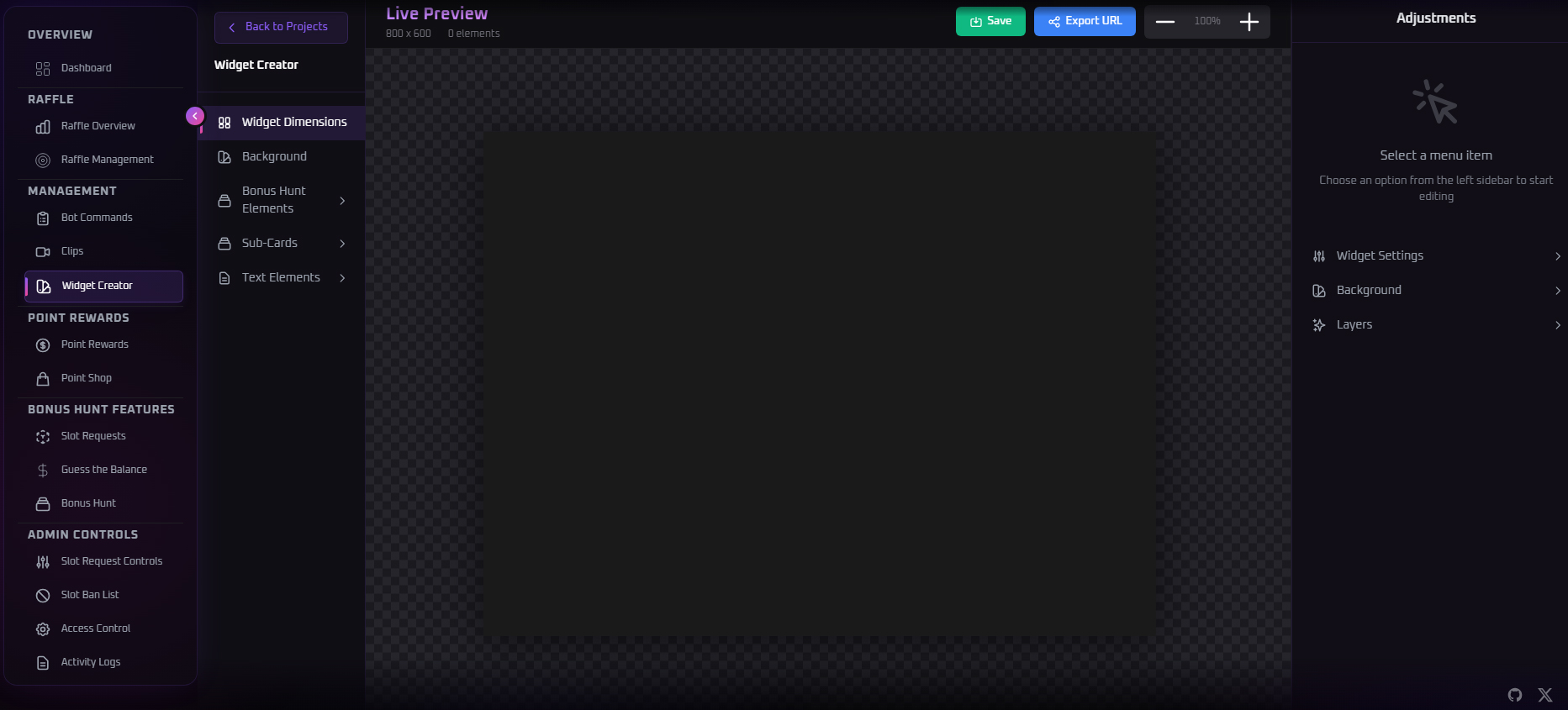
- Navigate to Widget Creator in the dashboard
- Choose from templates or design from scratch
- Customize colors, fonts, animations, and layout
- Copy the widget URL and add it as a Browser Source in OBS
- Widgets update in real-time automatically via Redis
Bonus Hunt Tracker
Track and display your casino bonus hunts:
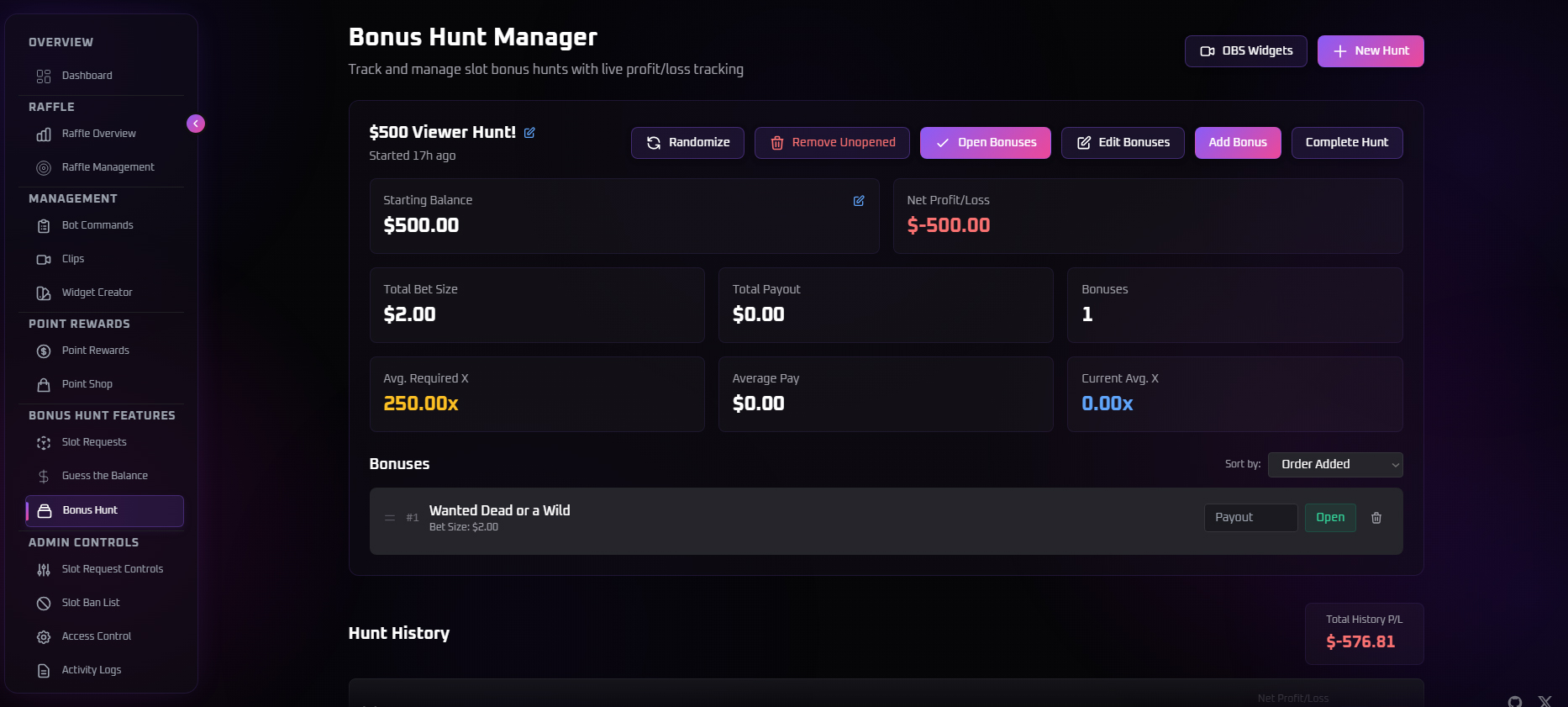
- Go to Bonus Hunt section
- Add slots/games with buy-in amounts
- Track results as you open bonuses
- Display live stats on stream with the overlay widget
- View profit/loss statistics and history
Raffle System
Run fair and transparent giveaways:
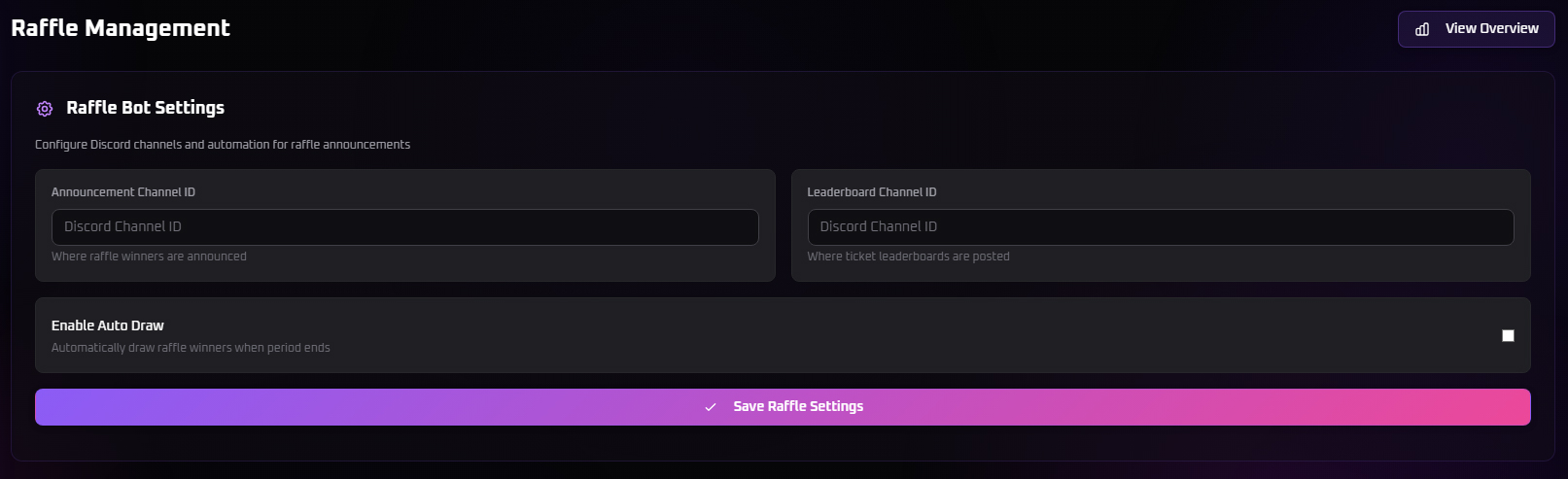
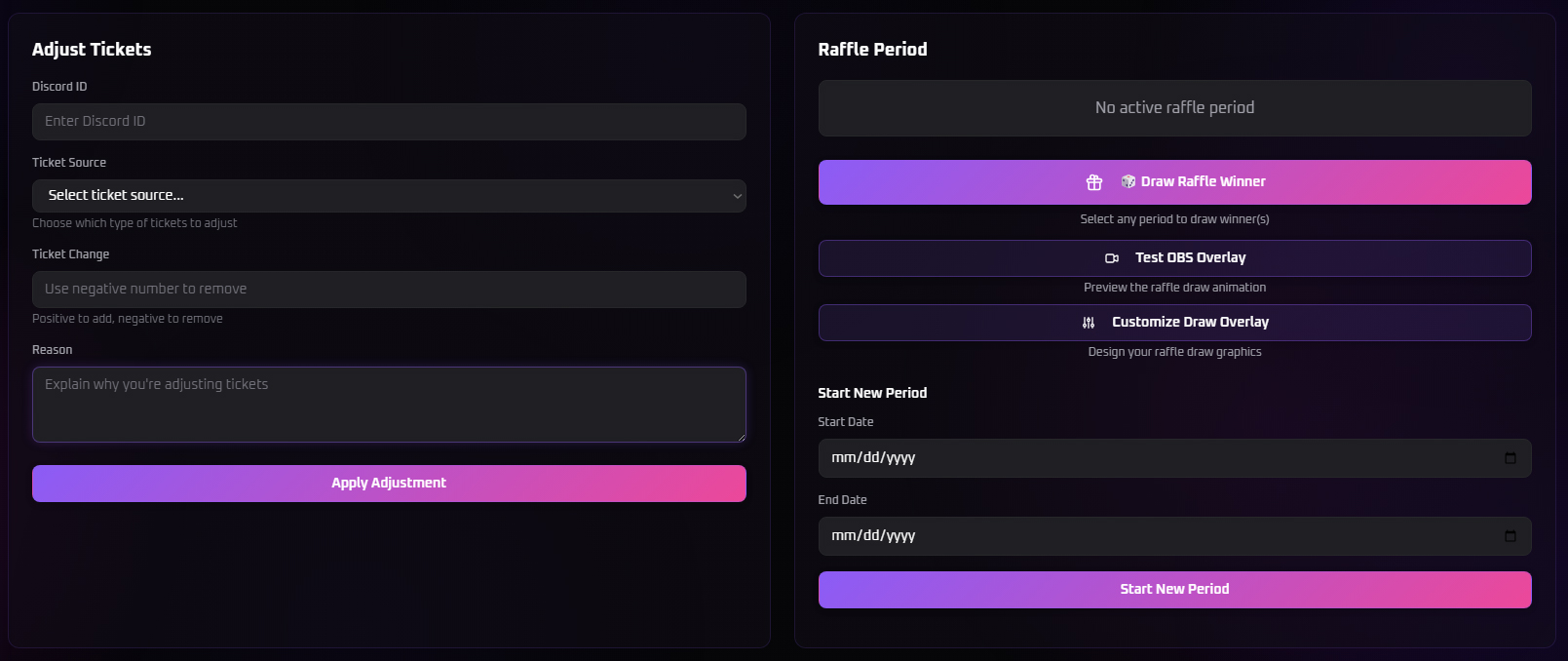
- Navigate to Raffle Management
- Create a new raffle with entry requirements
- Set exclusion lists (previous winners, specific users)
- Use the Draw Overlay for animated winner reveals
- All draws are provably fair using SHA-256
Point Shop
Reward your community with redeemable points:
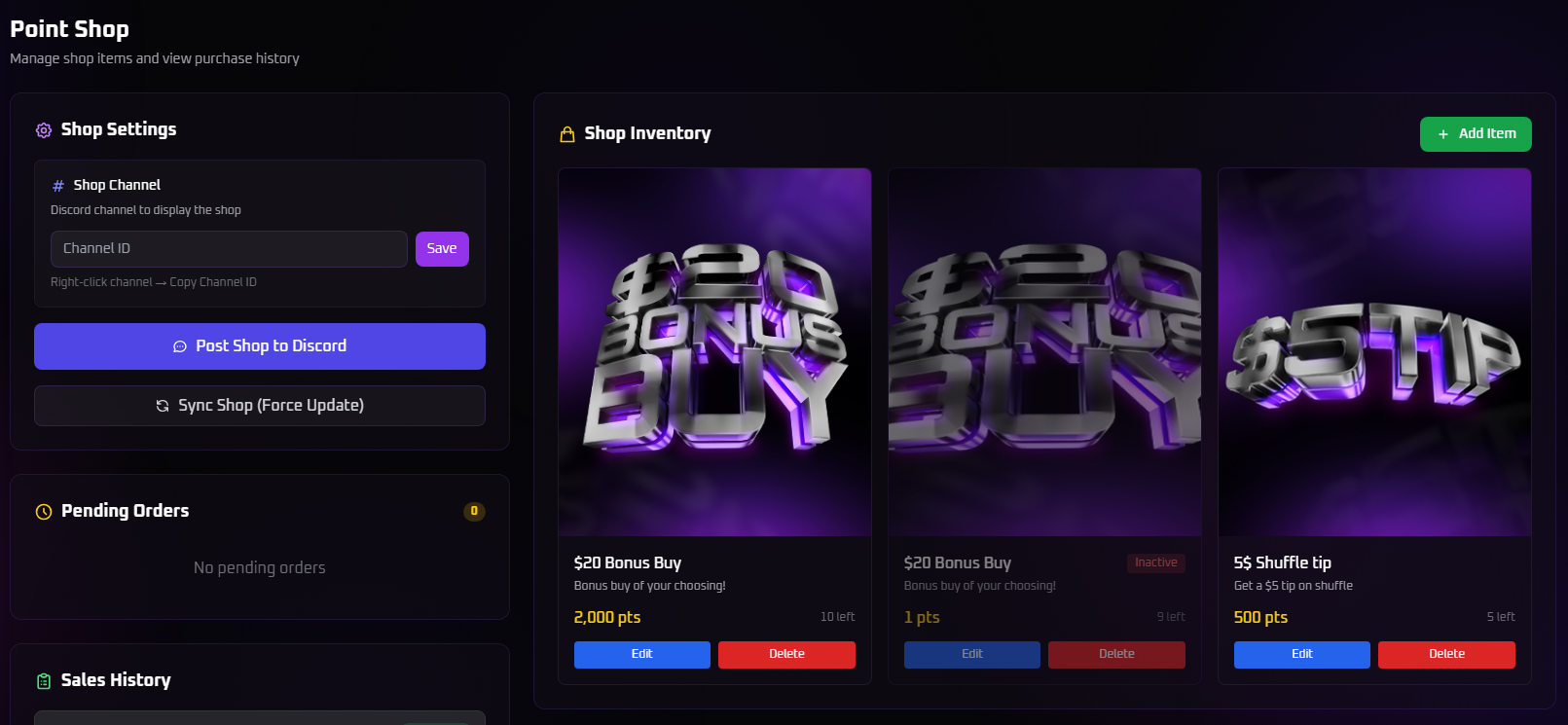
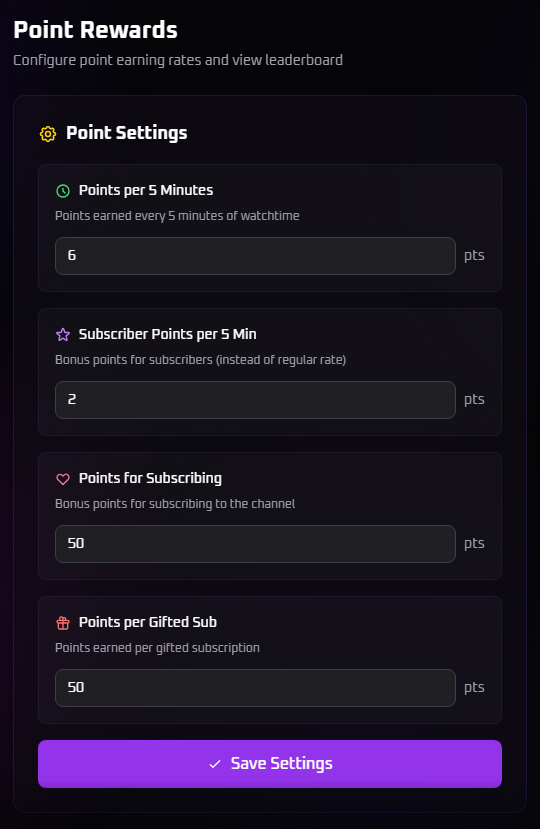
- Configure point rewards in Point Shop settings
- Add items viewers can purchase with points
- Set prices, stock limits, and cooldowns
- Viewers redeem items via Discord bot commands
- Track redemptions and manage inventory
🤖 Discord Bot Commands
Basic Commands
!help- Show all available commands!link- Link your Kick.com account!unlink- Unlink your Kick.com account!watchtime- Check your viewing statistics
Point Shop Commands
!shop- View available items!balance- Check your points!redeem [item]- Purchase an item!inventory- View your purchased items
Raffle Commands
!raffle enter- Enter current raffle!raffle status- Check raffle details!raffle tickets- View your entries
Admin Commands
!slot add [name]- Add slot request!slot pick- Pick random slot with rewards!raffle create- Start a new raffle!raffle draw- Draw raffle winner
🎨 Setting Up OBS Widgets
- Create your widget in the dashboard
- Copy the generated widget URL
- In OBS, add a new Browser Source
- Paste the widget URL
- Set width/height to match your design
- Widget will automatically update when you make changes!
⚙️ Configuration Tips
Role Requirements
Set watchtime thresholds for automatic role assignment:
- Go to Settings → Roles
- Configure hours required for each role tier
- Bot automatically assigns roles as users reach milestones
Custom Commands
Create personalized bot responses:
- Navigate to Custom Commands
- Add command name and response text
- Set cooldowns and permission levels
- Use variables like
{user},{points}, etc.
🔒 Security & Privacy
- All OAuth connections are encrypted and secure
- We never store your Discord or Kick.com passwords
- You can revoke access anytime via Discord settings
- Read our full Privacy Policy
❓ Need Help?
If you have questions or need support:
- Check the Provably Fair page for transparency info
- Contact us via the contact form on the homepage
- Message us directly on Discord
🎉 Ready to Get Started?
Head back to the homepage and click "Login with Discord" to access your dashboard!
© 2025 LeleBot. All rights reserved.